 TechArtDev
401 lines
12 KiB
Markdown
401 lines
12 KiB
Markdown
# OpenClaw Integration for Home Assistant
|
|
|
|
## [Join our Discord Server!](https://discord.gg/xeHeKu9jYp)
|
|

|
|
|
|
_If you want to install OpenClaw as Add-On/App directly on your Home Assistant instance take a look here:_ https://github.com/techartdev/OpenClawHomeAssistant
|
|
|
|
|
|
OpenClaw is a Home Assistant custom integration that connects your HA instance to the OpenClaw assistant backend and provides:
|
|
|
|
- A native conversation agent for Assist
|
|
- A Lovelace chat card with session history
|
|
- Service and event APIs for automations
|
|
- Optional voice mode in the card
|
|
|
|
---
|
|
|
|
## What it includes
|
|
|
|
- **Conversation agent** (`openclaw`) in Assist / Voice Assistants
|
|
- **Lovelace chat card** (`custom:openclaw-chat-card`) with:
|
|
- message history restore,
|
|
- typing indicator,
|
|
- optional voice input,
|
|
- wake-word handling for continuous mode
|
|
- **Services**
|
|
- `openclaw.send_message`
|
|
- `openclaw.clear_history`
|
|
- `openclaw.invoke_tool`
|
|
- **Event**
|
|
- `openclaw_message_received`
|
|
- `openclaw_tool_invoked`
|
|
- **Sensors / status entities** for model and connection state
|
|
- Includes tool telemetry sensors (`Last Tool`, `Last Tool Status`, `Last Tool Duration`, `Last Tool Invoked`)
|
|
|
|
---
|
|
|
|
## Requirements
|
|
|
|
- Home Assistant Core `2025.1.0+` (declared minimum)
|
|
- An **OpenClaw gateway** with `enable_openai_api` enabled — either:
|
|
- The [OpenClaw Assistant addon](https://github.com/techartdev/OpenClawHomeAssistant) running on the same HA instance (auto-discovery supported), **or**
|
|
- Any standalone [OpenClaw](https://github.com/openclaw/openclaw) installation reachable over the network (manual config)
|
|
- Supervisor is optional (used only for addon auto-discovery)
|
|
|
|
> **No addon required.** If you have OpenClaw running anywhere — on a separate server, a VPS, a Docker container, or even another machine on your LAN — this integration can connect to it via the manual configuration flow.
|
|
|
|
---
|
|
|
|
## Connection modes
|
|
|
|
The integration supports connecting to OpenClaw in several ways:
|
|
|
|
### Local addon (auto-discovery)
|
|
|
|
If the OpenClaw Assistant addon is installed on the **same** Home Assistant instance, the integration auto-discovers it:
|
|
- Reads token from the shared filesystem
|
|
- Detects `access_mode` and chooses the correct port automatically
|
|
- No manual config needed — just click **Submit** on the confirm step
|
|
|
|
> **`lan_https` mode**: The integration automatically connects to the internal gateway port (plain HTTP on loopback), bypassing the HTTPS proxy entirely. No certificate setup required.
|
|
|
|
### Remote or standalone OpenClaw instance (manual config)
|
|
|
|
You can connect to **any reachable OpenClaw gateway** — whether it's the HA addon on another machine, a standalone `openclaw` install on a VPS, or a Docker container on your LAN. The integration doesn't care how OpenClaw is installed; it only needs the `/v1/chat/completions` endpoint.
|
|
|
|
**Prerequisites on the OpenClaw instance:**
|
|
|
|
1. The OpenAI-compatible API must be **enabled**:
|
|
- **Addon users**: Set `enable_openai_api: true` in addon settings
|
|
- **Standalone users**: Set `gateway.http.endpoints.chatCompletions.enabled: true` in `openclaw.json`, or run:
|
|
```sh
|
|
openclaw config set gateway.http.endpoints.chatCompletions.enabled true
|
|
```
|
|
2. The gateway must be **network-reachable** from your HA instance (not bound to loopback only)
|
|
3. You need the **gateway auth token**:
|
|
```sh
|
|
openclaw config get gateway.auth.token
|
|
```
|
|
|
|
**Setup steps:**
|
|
|
|
1. Go to **Settings → Devices & Services → Add Integration → OpenClaw**
|
|
2. Auto-discovery will fail (no local addon) — you'll see the **Manual Configuration** form
|
|
3. Fill in:
|
|
- **Gateway Host**: IP or hostname of the remote machine (e.g. `192.168.1.50`)
|
|
- **Gateway Port**: The gateway port (default `18789`)
|
|
- **Gateway Token**: Auth token from the remote `openclaw.json`
|
|
- **Use SSL (HTTPS)**: Check if connecting to an HTTPS endpoint
|
|
- **Verify SSL certificate**: Uncheck for self-signed certificates (e.g. `lan_https` mode)
|
|
|
|
### Common remote scenarios
|
|
|
|
| Remote access mode | Host | Port | Use SSL | Verify SSL | Notes |
|
|
|---|---|---|---|---|---|
|
|
| Standalone OpenClaw (plain HTTP on LAN) | Remote IP | 18789 | ❌ | — | Default `openclaw gateway run` config |
|
|
| `lan_https` (addon built-in HTTPS proxy) | Remote IP | 18789 | ✅ | ❌ | Self-signed cert; disable verification |
|
|
| Behind reverse proxy (NPM/Caddy with Let's Encrypt) | Domain or IP | 443 | ✅ | ✅ | Trusted cert from a real CA |
|
|
| Plain HTTP addon on LAN | Remote IP | 18789 | ❌ | — | Addon `bind_mode` must be `lan` |
|
|
| Tailscale | Tailscale IP | 18789 | ❌ | — | Encrypted tunnel; plain HTTP is fine |
|
|
|
|
> **Security note**: Avoid exposing plain HTTP gateways to the public internet. Use `lan_https`, a reverse proxy with TLS, or Tailscale for remote access.
|
|
|
|
---
|
|
|
|
## Installation
|
|
|
|
### Option A: HACS (recommended)
|
|
|
|
1. Open **HACS → Integrations**
|
|
2. Click the **3 dots (⋮)** menu in the top-right
|
|
3. Select **Custom repositories**
|
|
4. Add repository URL: `https://github.com/techartdev/OpenClawHomeAssistantIntegration`
|
|
5. Category: **Integration**
|
|
6. Click **Add**
|
|
7. Go back to **Explore & Download Repositories**
|
|
8. Search for **OpenClaw** and install
|
|
9. Restart Home Assistant
|
|
10. Open **Settings → Devices & Services → Add Integration**
|
|
11. Add **OpenClaw**
|
|
|
|
### Option B: Manual
|
|
|
|
1. Copy `custom_components/openclaw` into your HA config directory:
|
|
|
|
```
|
|
config/custom_components/openclaw
|
|
```
|
|
|
|
2. Restart Home Assistant
|
|
3. Add **OpenClaw** from **Settings → Devices & Services**
|
|
|
|
---
|
|
|
|
## Dashboard card
|
|
|
|
The card is registered automatically by the integration.
|
|
|
|
The card header shows live gateway state (`Online` / `Offline`) using existing OpenClaw status entities.
|
|
|
|
```yaml
|
|
type: custom:openclaw-chat-card
|
|
title: OpenClaw Chat
|
|
height: 500px
|
|
show_timestamps: true
|
|
show_voice_button: true
|
|
show_clear_button: true
|
|
session_id: default
|
|
```
|
|
|
|
Minimal config:
|
|
|
|
```yaml
|
|
type: custom:openclaw-chat-card
|
|
```
|
|
|
|
---
|
|
|
|
## Assist entity exposure context
|
|
|
|
OpenClaw can include Home Assistant entity context based on Assist exposure.
|
|
|
|
Configure exposure in:
|
|
|
|
**Settings → Voice assistants → Expose**
|
|
|
|
Only entities exposed there are included when this feature is enabled.
|
|
|
|
---
|
|
|
|
## Integration options
|
|
|
|
Open **Settings → Devices & Services → OpenClaw → Configure**.
|
|
|
|
### Context options
|
|
|
|
- **Include exposed entities context**
|
|
- **Max context characters**
|
|
- **Context strategy**
|
|
- `truncate`: keep the first part up to max length
|
|
- `clear`: remove context when it exceeds max length
|
|
|
|
### Tool call option
|
|
|
|
- **Enable tool calls**
|
|
|
|
When enabled, OpenClaw tool-call responses can execute Home Assistant services.
|
|
|
|
### Voice options
|
|
|
|
- **Wake word enabled**
|
|
- **Wake word** (default: `hey openclaw`)
|
|
- **Voice input provider** (`browser` or `assist_stt`)
|
|
|
|
### Voice provider usage
|
|
|
|
- **`browser`**
|
|
- Uses browser Web Speech recognition.
|
|
- Supports manual mic and continuous voice mode (wake word flow).
|
|
- Best when browser STT is stable in your environment.
|
|
|
|
- **`assist_stt`**
|
|
- Uses Home Assistant STT provider via `/api/stt/<provider>`.
|
|
- Intended for manual mic input (press mic, speak, auto-stop, transcribe, send).
|
|
- If continuous Voice Mode is enabled while this provider is selected, the card uses browser speech for continuous listening.
|
|
|
|
For `assist_stt`, make sure an STT engine is configured in **Settings → Voice assistants**.
|
|
|
|
---
|
|
|
|
## Browser voice note (important)
|
|
|
|
Card voice input uses browser speech recognition APIs (`SpeechRecognition` / `webkitSpeechRecognition`).
|
|
|
|
- Behavior depends on browser support and provider availability
|
|
- In Brave, repeated `network` errors can occur even with mic permission
|
|
- The card now detects repeated backend failures and stops endless retries with a clear status message
|
|
|
|
If voice is unreliable in Brave, use Chrome/Edge for card voice input or continue with typed chat.
|
|
|
|
---
|
|
|
|
## Services
|
|
|
|
### `openclaw.send_message`
|
|
|
|
Send a message to OpenClaw.
|
|
|
|
Fields:
|
|
|
|
- `message` (required)
|
|
- `session_id` (optional)
|
|
- `attachments` (optional)
|
|
|
|
Example:
|
|
|
|
```yaml
|
|
service: openclaw.send_message
|
|
data:
|
|
message: "Turn on the living room lights"
|
|
session_id: "living-room-session"
|
|
```
|
|
|
|
### `openclaw.clear_history`
|
|
|
|
Clear stored conversation history for a session.
|
|
|
|
Fields:
|
|
|
|
- `session_id` (optional; defaults to `default` session)
|
|
|
|
Example:
|
|
|
|
```yaml
|
|
service: openclaw.clear_history
|
|
data:
|
|
session_id: "living-room-session"
|
|
```
|
|
|
|
### `openclaw.invoke_tool`
|
|
|
|
Invoke a single OpenClaw Gateway tool directly.
|
|
|
|
Fields:
|
|
|
|
- `tool` (required)
|
|
- `action` (optional)
|
|
- `args` (optional object)
|
|
- `session_key` (optional)
|
|
- `dry_run` (optional)
|
|
- `message_channel` (optional)
|
|
- `account_id` (optional)
|
|
|
|
Example:
|
|
|
|
```yaml
|
|
service: openclaw.invoke_tool
|
|
data:
|
|
tool: sessions_list
|
|
action: json
|
|
args: {}
|
|
session_key: main
|
|
```
|
|
|
|
---
|
|
|
|
## Event
|
|
|
|
### `openclaw_message_received`
|
|
|
|
Fired when OpenClaw returns a response.
|
|
|
|
Event data includes:
|
|
|
|
- `message`
|
|
- `session_id`
|
|
- `timestamp`
|
|
|
|
Automation example:
|
|
|
|
```yaml
|
|
trigger:
|
|
- platform: event
|
|
event_type: openclaw_message_received
|
|
action:
|
|
- service: notify.mobile_app_phone
|
|
data:
|
|
message: "{{ trigger.event.data.message }}"
|
|
```
|
|
|
|
### `openclaw_tool_invoked`
|
|
|
|
Fired when `openclaw.invoke_tool` completes.
|
|
|
|
Event data includes:
|
|
|
|
- `tool`
|
|
- `ok`
|
|
- `result`
|
|
- `error`
|
|
- `duration_ms`
|
|
- `timestamp`
|
|
|
|
Automation example:
|
|
|
|
```yaml
|
|
trigger:
|
|
- platform: event
|
|
event_type: openclaw_tool_invoked
|
|
condition:
|
|
- condition: template
|
|
value_template: "{{ trigger.event.data.ok == false }}"
|
|
action:
|
|
- service: notify.mobile_app_phone
|
|
data:
|
|
message: "Tool {{ trigger.event.data.tool }} failed: {{ trigger.event.data.error }}"
|
|
```
|
|
|
|
---
|
|
|
|
## Troubleshooting
|
|
|
|
### Card does not appear
|
|
|
|
- Restart Home Assistant after updating
|
|
- Hard refresh browser cache
|
|
- Confirm Integration is loaded in **Settings → Devices & Services**
|
|
|
|
### Voice button is active but no transcript is sent
|
|
|
|
- Check browser mic permission for your HA URL
|
|
- Confirm **Voice input provider** setting in integration options:
|
|
- `browser` for Web Speech recognition
|
|
- `assist_stt` for Home Assistant STT transcription
|
|
- For `browser`: open browser console for `OpenClaw: Speech recognition error`; repeated `network` usually means browser speech backend failure
|
|
- For `assist_stt`: check network calls to `/api/stt/<provider>` and verify Home Assistant Voice/STT provider is configured
|
|
|
|
### Tool sensors show `Unknown`
|
|
|
|
- `Last Tool*` sensors stay `Unknown` until at least one `openclaw.invoke_tool` service call has executed.
|
|
- `Session Count` remains `0` if gateway policy blocks `sessions_list` for `/tools/invoke`.
|
|
|
|
### Responses do not appear after sending
|
|
|
|
- Verify `openclaw_message_received` is being fired in Developer Tools → Events
|
|
- Confirm session IDs match between card and service calls
|
|
|
|
### "400 Bad Request — plain HTTP request was sent to HTTPS port"
|
|
|
|
- The gateway is running in `lan_https` mode (built-in HTTPS proxy)
|
|
- **Local addon**: Remove and re-add the integration — auto-discovery now detects `lan_https` and uses the correct internal port automatically
|
|
- **Remote connection**: Enable **Use SSL (HTTPS)** and disable **Verify SSL certificate** in the manual config
|
|
|
|
---
|
|
|
|
## Development notes
|
|
|
|
- Main card source is:
|
|
|
|
```
|
|
custom_components/openclaw/www/openclaw-chat-card.js
|
|
```
|
|
|
|
- Root `www/openclaw-chat-card.js` is a loader shim that imports the packaged card script.
|
|
|
|
---
|
|
|
|
## Star History
|
|
|
|
[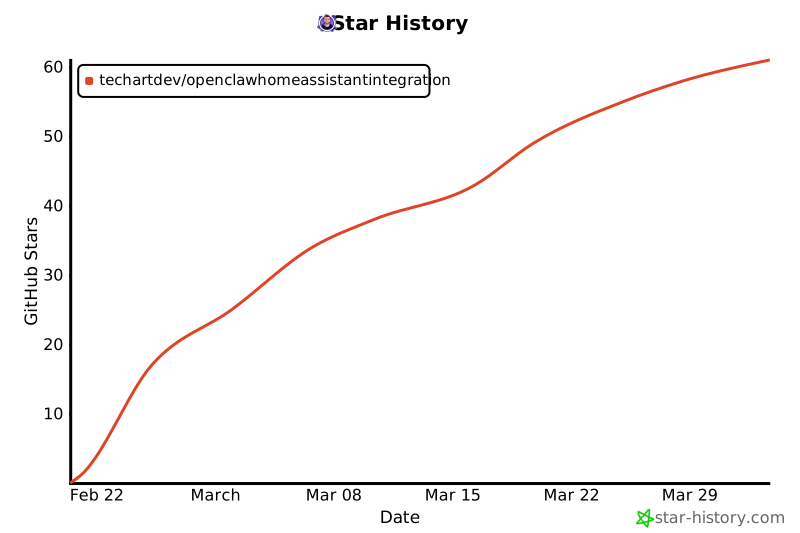](https://www.star-history.com/#techartdev/OpenClawHomeAssistantIntegration&type=date&legend=top-left)
|
|
|
|
## License
|
|
|
|
MIT. See [LICENSE](LICENSE).
|
|
|
|
## Support / Donations
|
|
|
|
If you find this useful and you want to bring me a coffee to make more nice stuff, or support the project, use the link below:
|
|
- https://revolut.me/vanyo6dhw
|
|
|